Quick Start Guides
<
Back to Quick Start Guides List
5G Adapter
This guide is intended for professional installers and certified partners. If you are an end user, please contact your service provider for installation assistance.
1
Locate the 5G Adapter 1
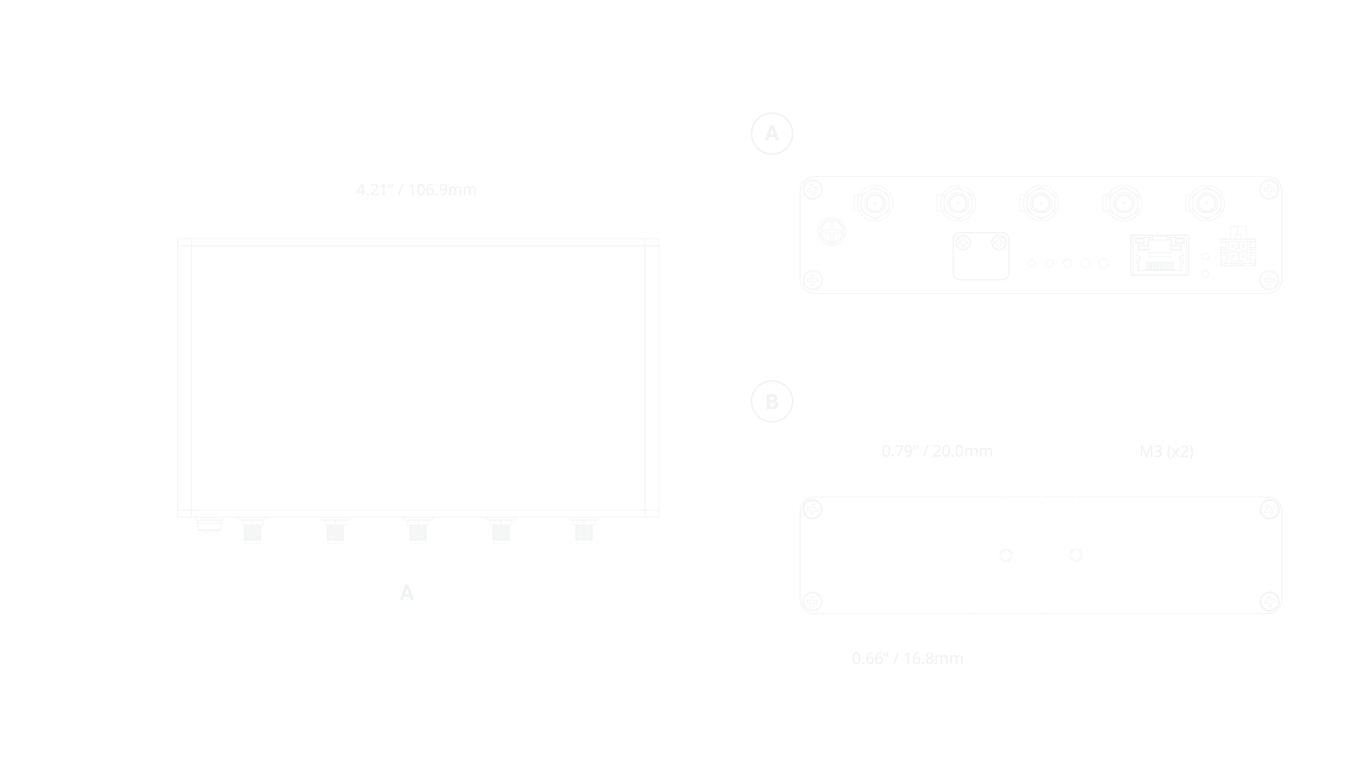
- Choose a safe and secure location that also provides sufficient room for the installation of cellular antennas and running of cables.
- Place the 5G Adapter antenna ideally away from large metal objects which may block the signal.
- 1. Additional mounting options are available (sold separately) — DIN Rail Mount (ACW-DIN-M2MS) and Ear Mount (ACW-724).
2
Antenna Installation 2
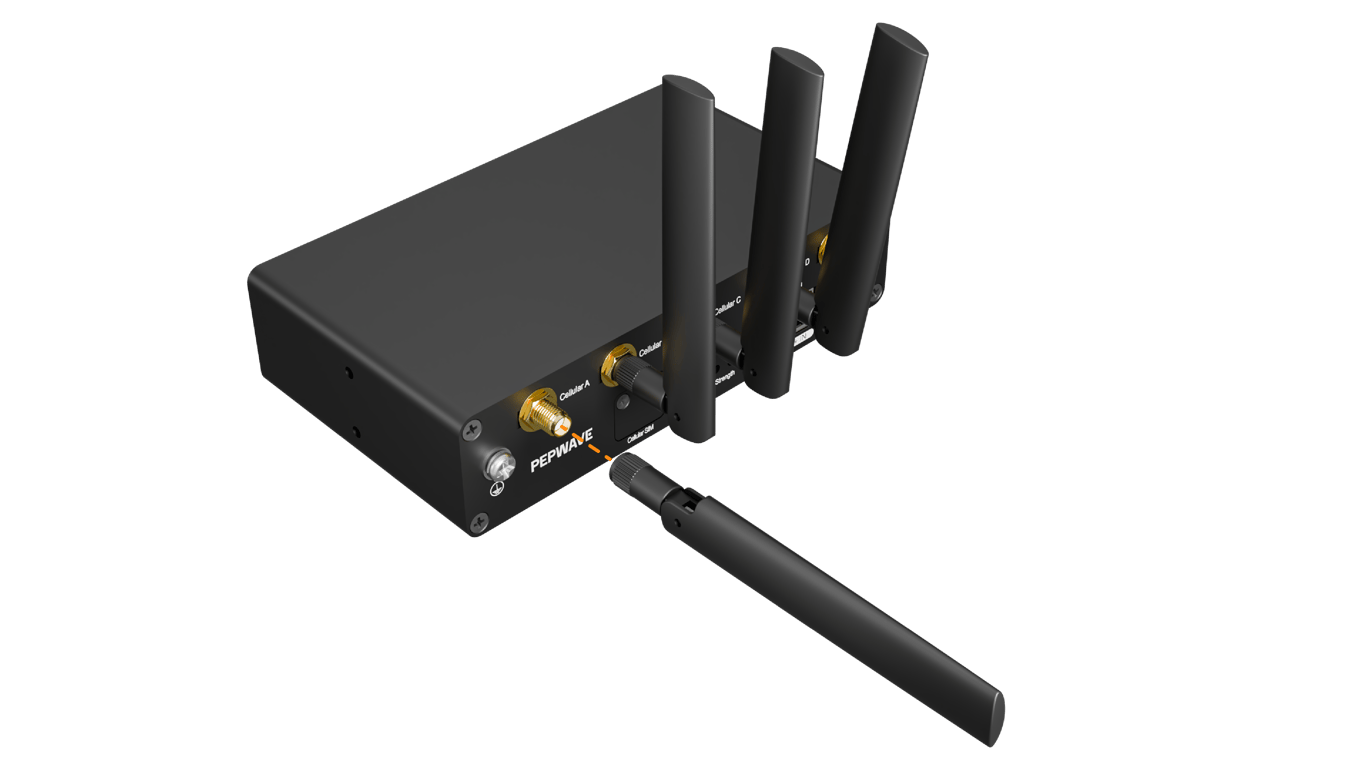
- Attach four 5G cellular antennas and one GPS active antenna.
- 2. If required, install Peplink’s Mobility Antennas with an extension cable and position the antennas to get better signal strength.
3
SIM Installation
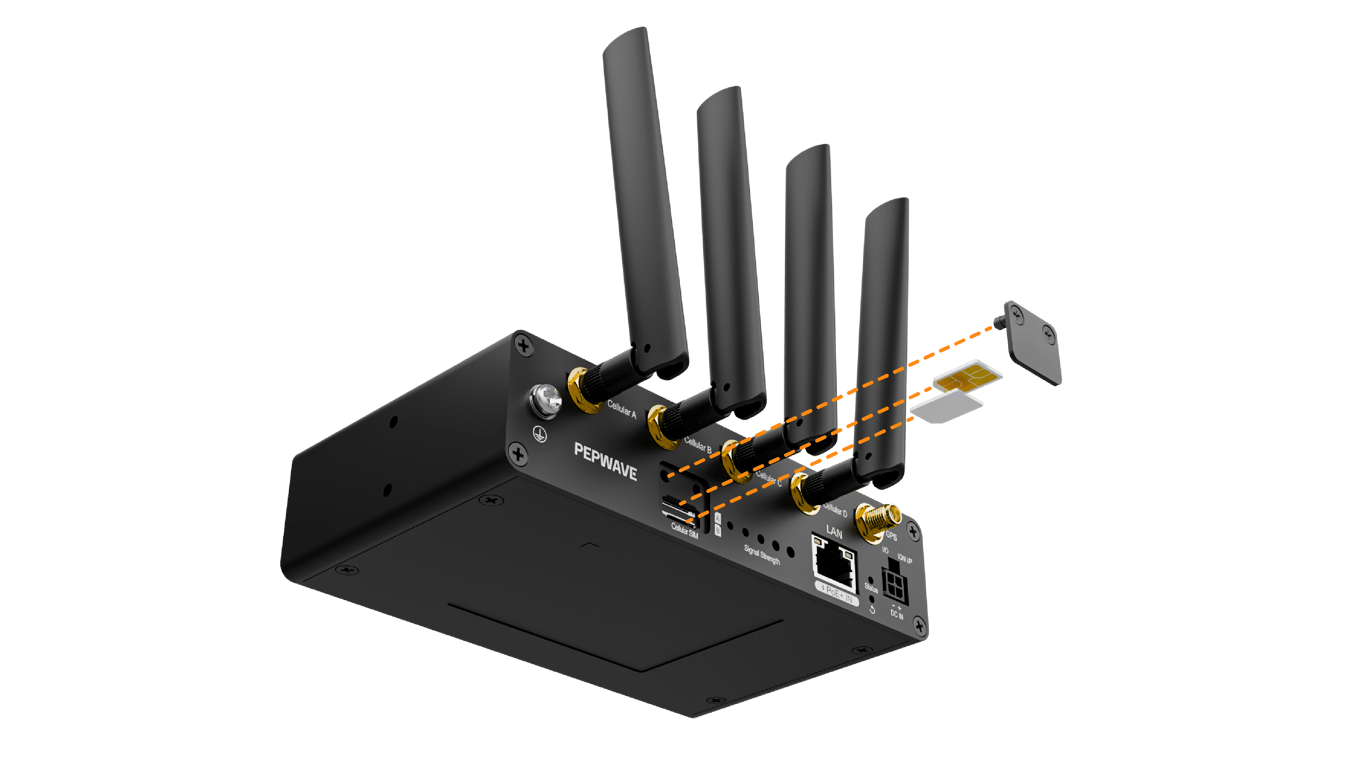
- Loosen the screw of the SIM cover.
- Insert the physical SIM into the slot.
4
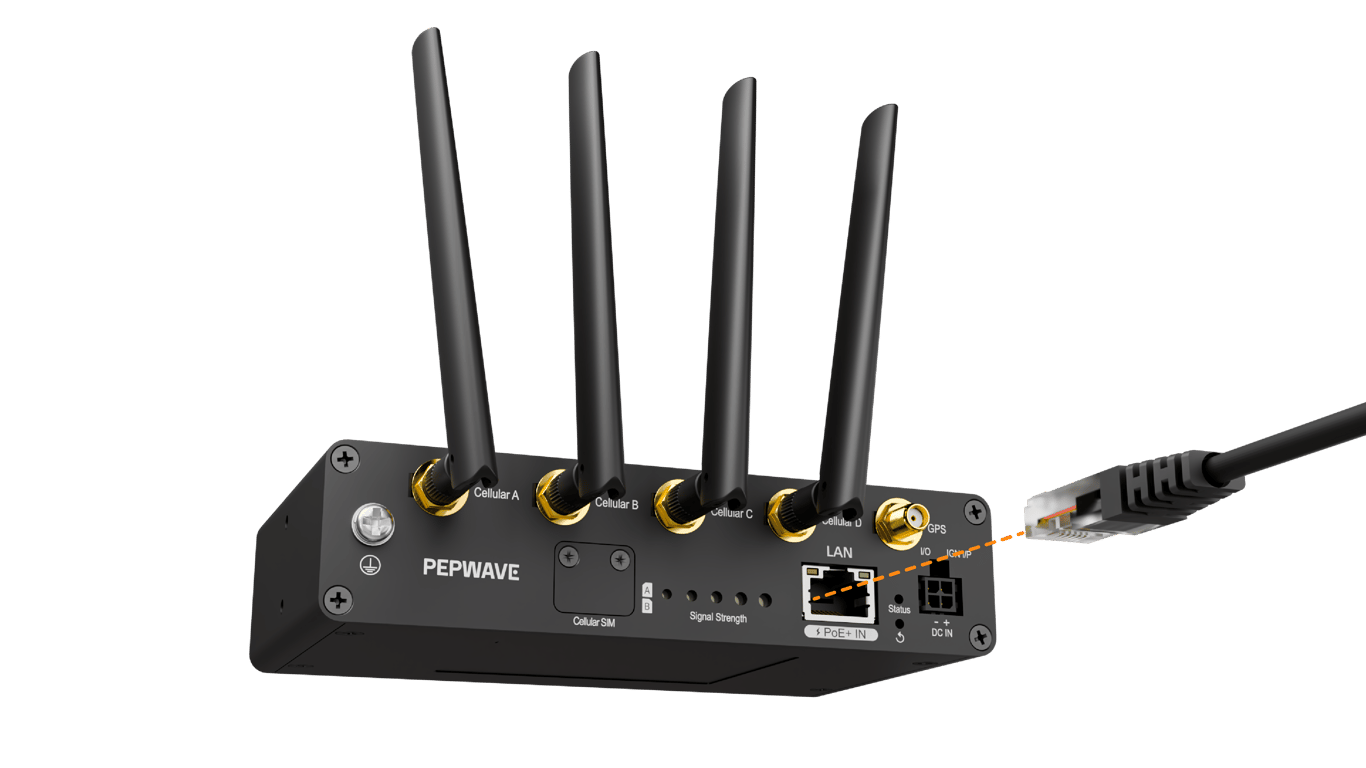
Connect Ethernet
- Connect your device or network to the 5G Adapter using the 2.5G Ethernet LAN port.
5
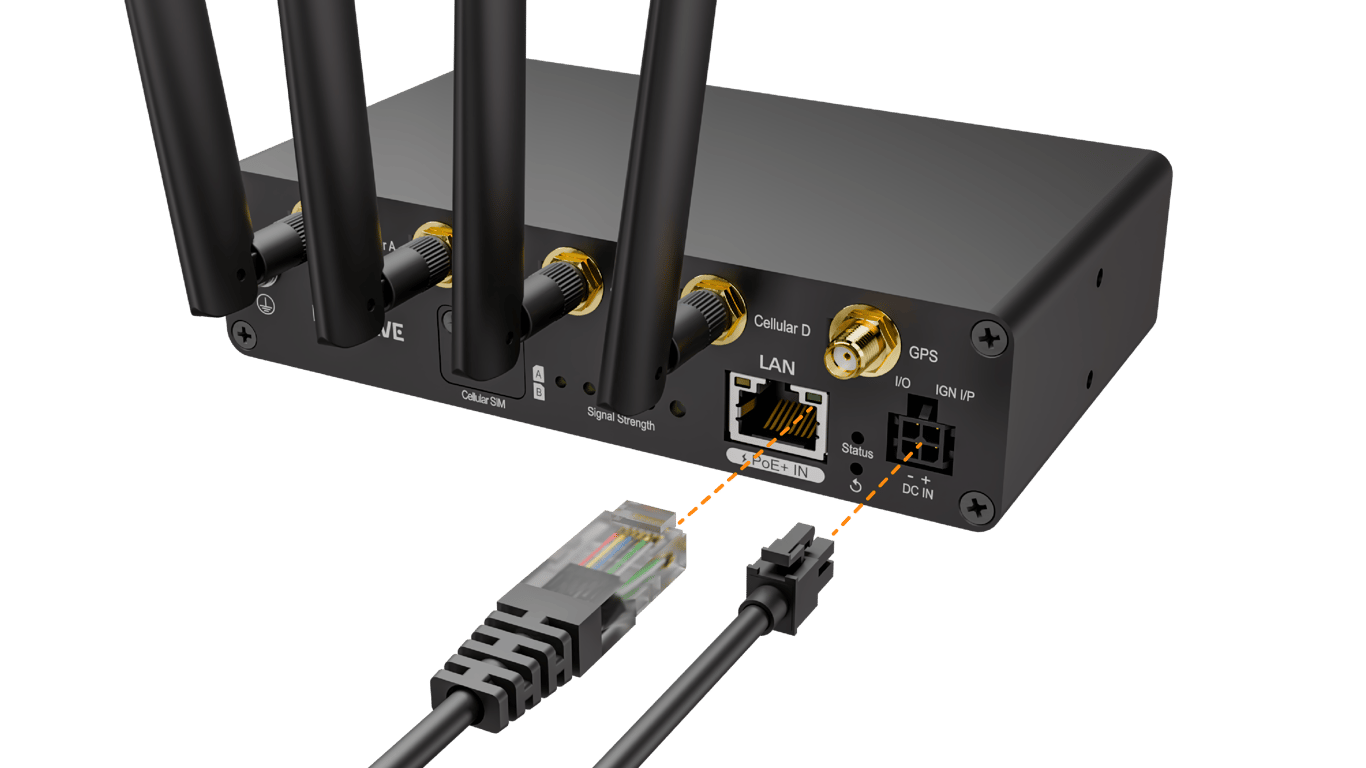
Power Connection
- Connect power using one of the following three options:
- Included 12V 2A power supply via the 4-pin Micro-Fit connector
- Power over Ethernet (PoE 802.3at) through the LAN port
- Direct DC input (10V to 30V) for vehicle and industrial installations
6
Configure the 5G Adapter
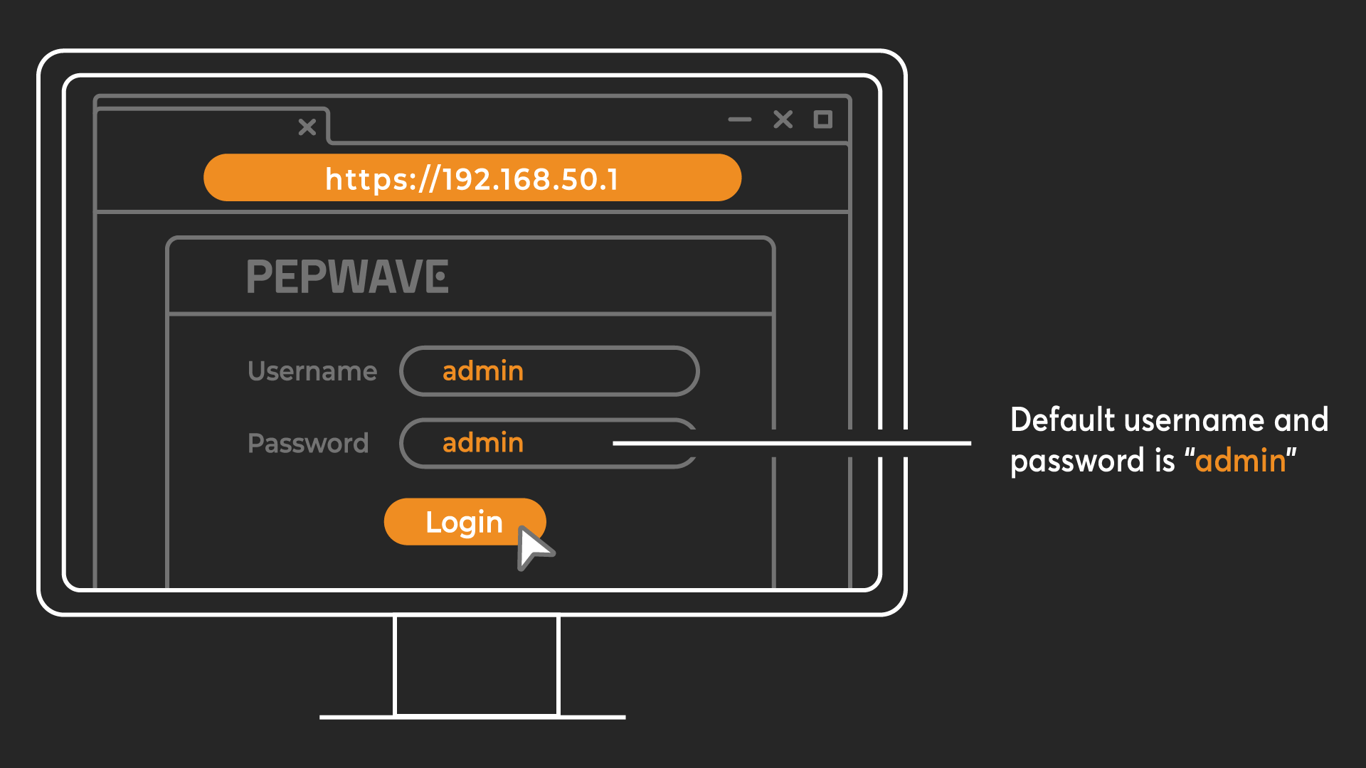
- Connect the 5G Adapter to a device with access to the Web Admin Interface.
- Enter https://192.168.50.1 as the URL of a browser. A login page will pop up.
- Log in to the router with the following information.
Default username: admin
Default password: admin - Follow the guide and change the login password.
- Modem settings can be configured in the Web Admin Interface as required. For detailed instructions, please refer to the user manual.
- You can also manage the 5G Adapter remotely using InControl 2 (IC2). 3
- 3. The 5G Adapter comes with 1GB pre-loaded eSIM data for instant connectivity. For IC2 registration, see this guide.
7
Check the LEDs Indicators 4
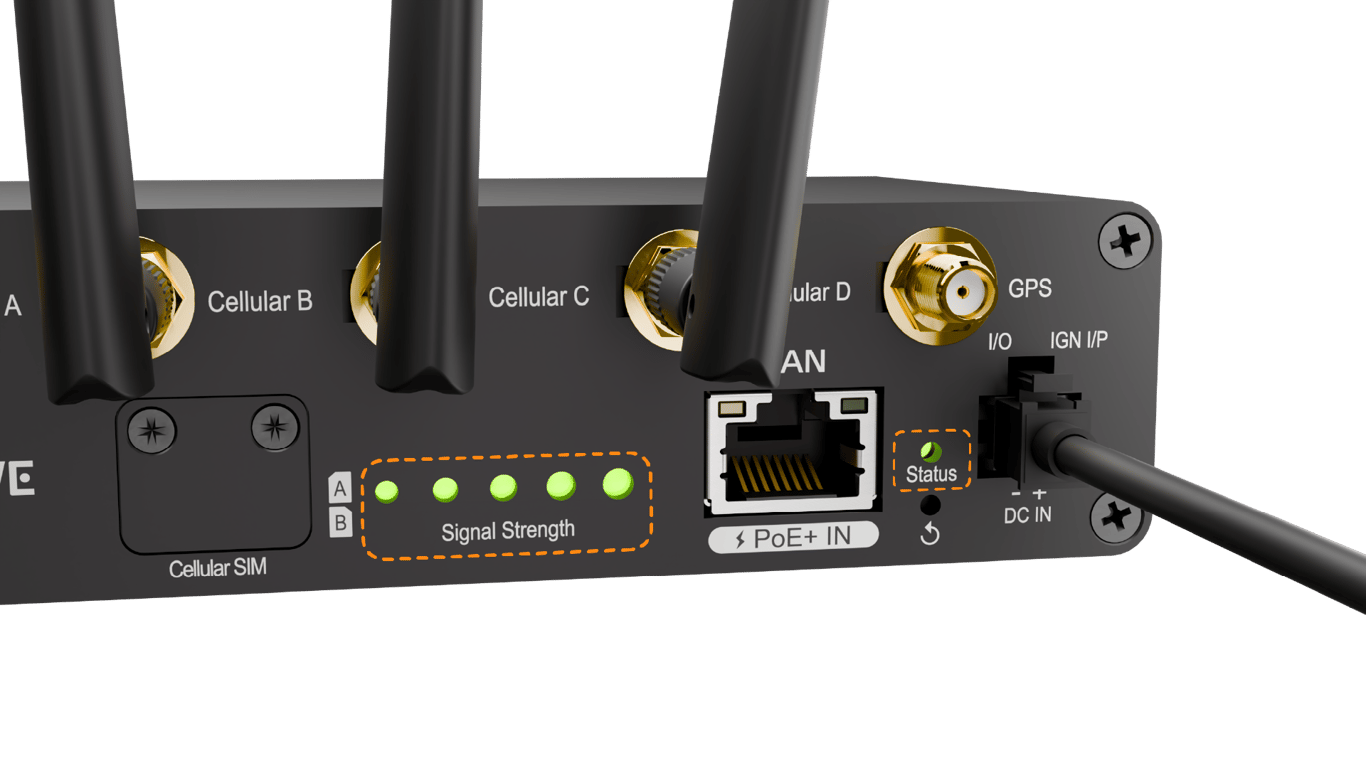
- Once the device is booted up, the “Status” light will turn steady green.
- The front panel of the 5G Adapter features a 0 to 5 bar LED signal strength indicator. Use this to gauge your cellular connection quality at a glance.
| Bars | Signal Quality |
|---|---|
| 0 | No signal |
| 1 | Weak |
| 2 | Fair |
| 3 | Moderate |
| 4 | Good |
| 5 | Strong |
- 4. Please check the 5G Adapter User Manual for detailed LED behavior.